Multichat
Combine Twitch, YouTube and Kick chat in one free OBS dock. Identify platform and shared-chat origins, filter messages and follow your conversations.
Multistream
Windows x64 · 1.0.3 · Free core feature
Stream horizontal and vertical pictures from your own OBS computer. Choose a picture independently for OBS main stream and each additional destination.
Multistream is part of FDGCast, the same OBS streaming companion that includes chat, multistream controls, activity and monitoring.
Running several streaming destinations means managing stream keys, output states and failures. FDGCast brings those controls together so you can start or stop the intended outputs without hunting through separate tools.
Vertical Studio offers direct camera crops, seven customizable presets and saved per-scene layouts with automatic scene following on by default. For Twitch dual format, save the Vertical Studio layout, enable its Twitch canvas, then select FDGCast in OBS Settings → Stream → Additional Canvas with Enhanced Broadcasting enabled and at least four video tracks. Twitch needs no second key. YouTube has separate Horizontal and Vertical presets for picture and stream-key selection. Add Twitch, YouTube and Kick destinations or use a manual custom server for another video destination. Individual controls manage each output. Start All starts the main stream and checked destinations; Stop All stops the broadcast outputs. Selection checkboxes determine what the next Start All includes, rather than stopping a live destination when unchecked.
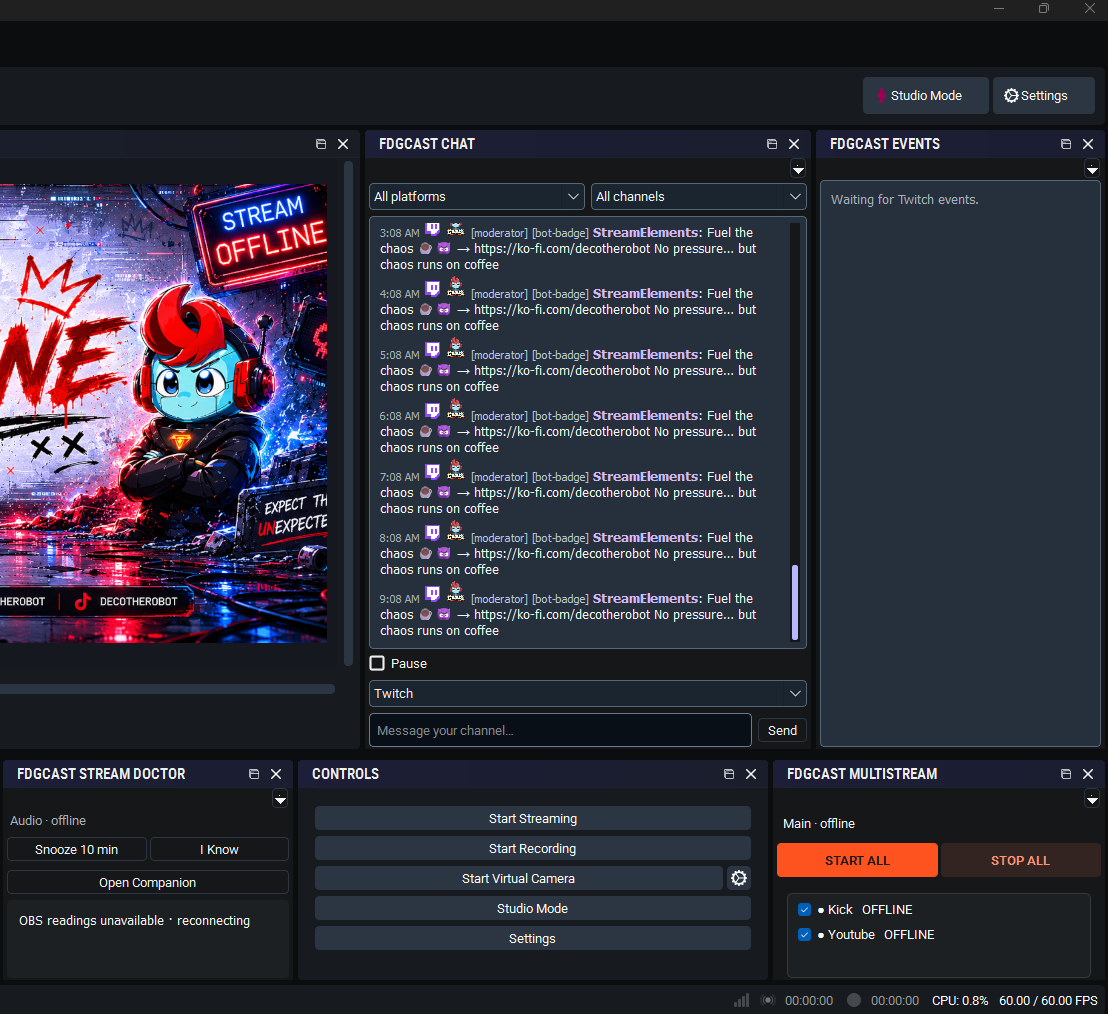
Select Twitch and YouTube for a stream, keep another saved destination unchecked, and use Start All for the selected outputs. If one destination has an error, inspect its state and stop that output individually while deciding what to do next.
Full installation and pairing instructions · Troubleshooting and documentation
Yes, the controls support those destinations when you have valid stream credentials and enough upload bandwidth.
Start All and Stop All are implemented. Start All includes the main OBS stream and checked destinations. Test your configuration before going live.
No. Your computer sends the outputs, so each destination uses your internet upload connection.
No. Manual video output and chat integration are separate features.
Combine Twitch, YouTube and Kick chat in one free OBS dock. Identify platform and shared-chat origins, filter messages and follow your conversations.
Monitor selected OBS audio sources with mute, silence and track-routing warnings. FDGCast Audio Guard offers configurable Windows and sound alerts.
Review OBS dropped frames, rendering and encoding lag, FPS, CPU readings and destination failures with FDGCast Stream Doctor’s configurable alerts.
Read supported Twitch, YouTube and experimental TikTok LIVE activity in one free feed with platform icons, channel labels, activity filters and grouped notifications.
These are tools in one FDGCast application, not separate products or installers.
Core chat and activity are free. Live Overlay Studio feeds require the existing verified paid or complimentary entitlement. Close OBS and FDGCast Companion before installing. Keep your existing setup and verify real platform delivery before a live stream.
Optional counting helps organizers understand event/profile visits and promotions. These measurements use pseudonymous identifiers and do not store your IP address, email or off-site browsing history. Raw measurements expire after 90 days. Turning this off stops new event, profile and promotion audience measurements; it does not remove anonymous totals already counted. Do Not Track and Global Privacy Control are respected.