Bring your streaming chats together in one place. FDGCast combines multistream chat, a Combined Activity Feed, stream monitoring, and creator tools in a free OBS companion experience.
Core streaming, chat and activity are free · Live Overlay Studio feeds require verified paid or complimentary access · Windows x64 · Builds target OBS Studio 32.2.2 · Live platform testing continues.
See FDGCast in action
Your OBS workspace and Companion
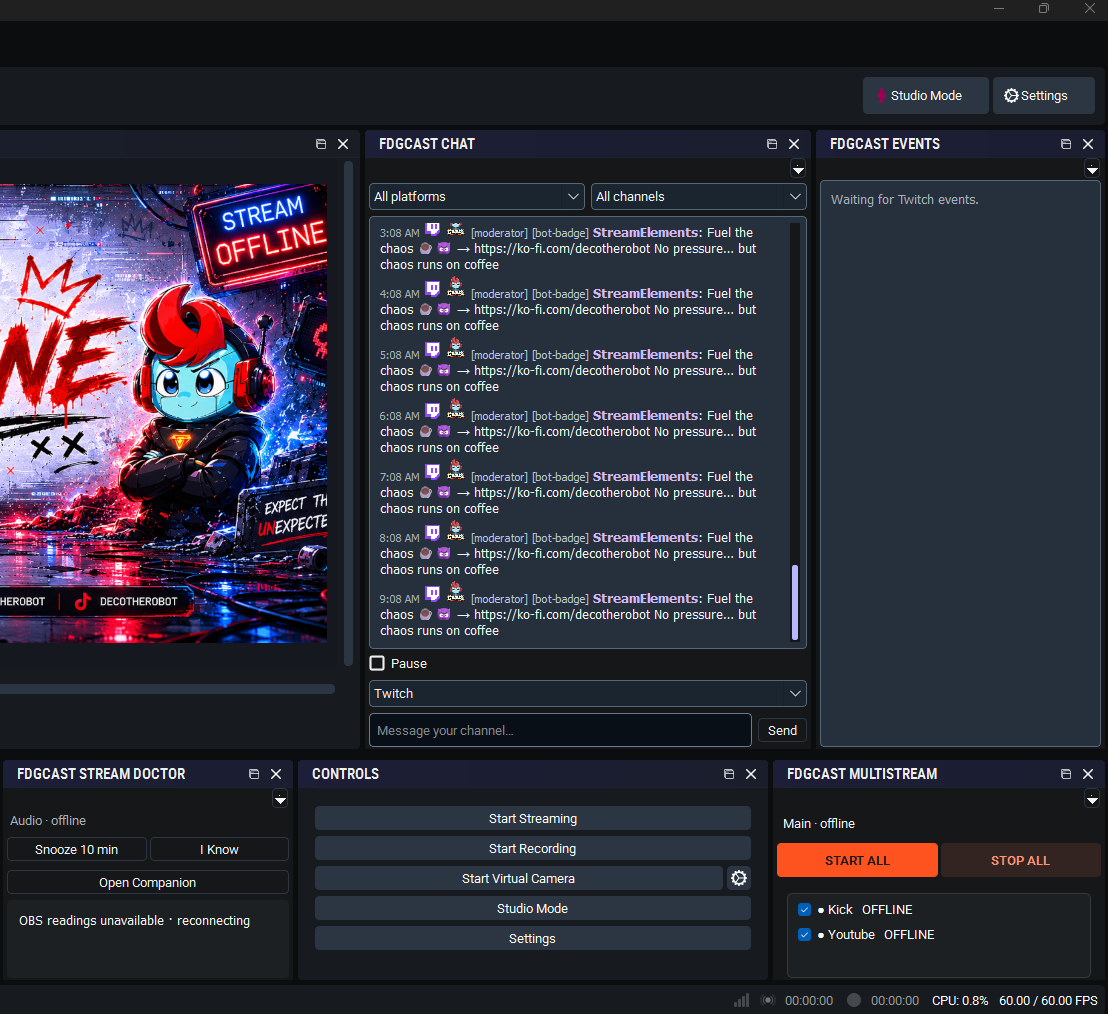
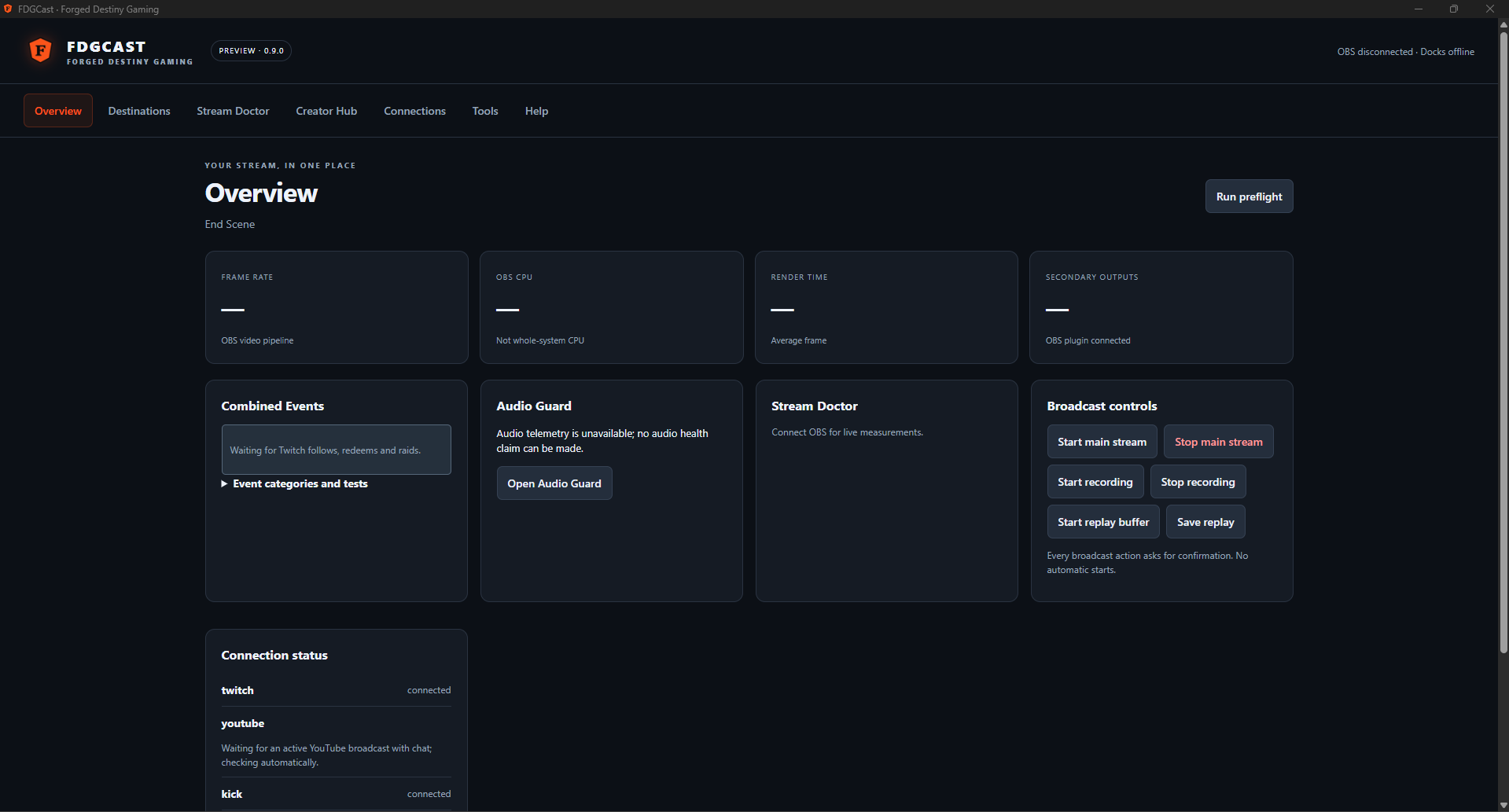
Genuine captures from an earlier Windows preview; the interface may differ in 1.0.3. The captions explain what is connected and what is waiting for a broadcast.
OBS workspace: Twitch messages with platform and channel labels, the earlier activity-feed dock waiting for Twitch activity, and Multistream controls with Kick and YouTube offline. This capture does not show live YouTube or Kick chat.Companion overview: connection status, broadcast controls, Audio Guard and Stream Doctor. OBS is disconnected, so stream and audio telemetry are unavailable.
Stable FDGCast 1.0.3
Vertical Studio: use the scene you already built
See your horizontal scene and portrait layout together in Companion. Draw, move and resize a crop around the camera already visible in your live scene. Direct camera crops reuse that scene picture without opening another camera capture. Choose from seven customizable presets, adjust regions and save layouts per OBS scene. Automatic scene following is on by default and can be turned off.
Twitch horizontal + vertical uses OBS Enhanced Broadcasting and the FDGCast Additional Canvas—there is no second Twitch stream key. Save your layout in Vertical Studio, enable its Twitch canvas, then select it in OBS Settings → Stream → Additional Canvas. Set Maximum Video Tracks to at least 4.
Separate YouTube Horizontal and YouTube Vertical presets make picture selection and stream-key setup clearer. Use the matching key for each configured YouTube broadcast. Unverified portrait routes, including Kick, are excluded from the vertical picker; a normal horizontal destination does not establish vertical compatibility.
Output health distinguishes sending, stalled and reconnecting outputs using actual dimensions and increasing bytes. Recovery fixes improve streaming continuity without guaranteeing playback on every platform or hardware setup.
Close OBS and FDGCast Companion before installing. Twitch dual format requires Enhanced Broadcasting, the FDGCast Additional Canvas, at least four video tracks and sufficient encoder capacity. Extra encodes and uploads need GPU and bandwidth headroom; four tracks may still exceed your hardware’s encoder capacity. Pairing, chat settings and the existing live-overlay entitlement remain in place.
Inside OBS
Free streaming tools, together in OBS
Adjust spacing, text size and extra controls per dock. Move and resize docks with OBS's normal controls.
Twitch, YouTube and Kick in one feed, with platform icons, username colors, compact messages and optional creator avatars. Use original-channel labels, platform/channel filters, Pause and Jump to latest to follow the conversation. Twitch shared-chat origin labels identify the channel where a message came from. Twitch and Kick emotes include animated GIFs.
YouTube uses a streaming chat connection with reconnect recovery and quota backoff. This reduces polling; it does not replenish exhausted Google project quota. Kick diagnostics distinguish subscription readiness, Hub receipt and receipt in Companion. Additional chat readers remain experimental and are outside the supported Twitch, YouTube and Kick core.
See supported Twitch and YouTube activity alongside experimental TikTok LIVE follows, gifts, subscription notifications and grouped likes/shares. Activity cards show platform icons and platform/channel names. Choose activity categories; duplicate handling and completed gift-streak counts reduce repeated entries. Kick audience events are not implemented.
Choose Twitch, YouTube, Kick and additional platform destinations, or enter a custom server in OBS or Companion. Manual destinations send video only; their chat is not automatically connected. Twitch and YouTube fill server addresses automatically; Kick attempts account-based lookup. Use Start All, Stop All or individual controls. Save destination-selection presets without duplicating your stream keys.
Choose a horizontal or Vertical Studio picture for each destination. Horizontal and vertical outputs can run simultaneously; each output sends one picture. Matching Studio outputs share their encoder. Each destination still needs upload bandwidth and rendering/encoding capacity.
Check selected microphone and optional game audio for prolonged mute, silence, missing sources, zero volume and routing problems. Quiet scenes, snooze, optional Windows warnings, sustained near-clipping checks and chosen VOD-track routing checks keep you in control.
Choose the FDGCast chirp or a supported custom WAV, adjust volume and test alerts before going live. Audio settings are never changed automatically.
Separate rendering lag, encoding lag and network drops, with sustained-problem detection, adjustable sensitivity and fewer repeated notices. Review destination failures, recoveries and possible shared issues, with optional live-only Windows notifications and an independent chirp or custom WAV.
It suggests checks; it cannot identify every faulty source, process or network hop.
Your workspace
OBS Companion & Docks
Adjust text size and spacing, hide Chat's composer or origin labels, reset appearance, and reveal extra controls when needed. Enable the optional Today’s Events dock from OBS Docks for your selected Hub event, local times and accepted collaborators. Saved display preferences are separate from OBS dock positions.
New in stable 1.0.3
TikTok LIVE chat and activity — without sending video from FDGCast
In Companion → Connections, enter a creator’s TikTok username and enable the experimental reader. That creator must have a public TikTok LIVE running, for example through a phone or TikTok LIVE Studio. FDGCast does not need to stream video to TikTok, connect to OBS or create another video encoder to receive this activity. The reader needs no TikTok password or stream key.
Receive LIVE chat, follows, gifts, subscription notifications and grouped likes/shares. Under Combined Activity Feed → Choose activity types & test alerts, select which categories appear. Platform icons and platform/channel names identify activity. Completed gift streaks use their final count, while bounded duplicate handling and grouping help keep the feed readable. Existing saved category choices are preserved.
Experimental and receive-only. The unofficial reader uses a third-party signing service and may stop working when TikTok or that service changes. It does not provide offline follower history, guaranteed event recovery or backfill, chat sending, moderation, or TikTok broadcasting access. Actual TikTok LIVE delivery has not been verified by the release maintainer for this build. Subscription notices do not verify billing status or revenue.
A clearer Companion interface
A wider activity feed, larger text and stronger contrast make activity easier to follow. Connections groups OBS and Hub pairing, linked platforms and direct LIVE readers. Broadcast controls sit together, with recording and replay controls in a separate expandable section. The activity feed preserves scroll position when you are reading older cards.
Platform availability
Core combined chat supports Twitch, YouTube and Kick. Rumble chat is receive-only and configured locally in Companion. TikTok LIVE chat and activity use the experimental, receive-only username reader described above; a public LIVE must be running.
Facebook Page and Instagram professional-account LIVE chat require the separately deployed and configured Meta Hub integration, eligible accounts, permissions and any required Meta review. Installing 1.0.3 alone does not enable them; live delivery is not claimed verified. Additional video destinations do not automatically connect their chat.
More chat options
Rumble chat, set up in Companion
FDGCast includes a local, receive-only Rumble reader. Open Companion → Connections → Connect Rumble chat, then enter your private URL from Rumble livestream API settings. Choose a broadcast if offered and check the connection status.
The chat connection is separate from a Rumble video destination. An otherwise active broadcast can be read without streaming its video through FDGCast. Public profile links do not connect chat.
Keep your private API URL in Companion only; never include it in logs, exports or screenshots. Bounded polling and retry backoff protect the service, but busy chats can exceed the API’s recent-message window.
Explore FDGCast Features
Choose a guide for the streaming tool you need.
Get started for free
Bring your chats together in OBS
Core Twitch, YouTube and Kick multichat is free. Live custom overlays are a separate Supporter feature.
Use Companion’s Tools tab to manage saved overlay designs and local read-only live feeds for OBS Browser Sources. Preview designs with labeled sample data for free. Live Overlay Studio feeds, including the earlier chat overlays, require the existing verified paid or complimentary entitlement from the official Forge Creator Hub.
Eligible official FDG members and complimentary grants receive access too. Designs stay saved when access ends. Core platform chats remain available independently of overlay access.
Companion must be running. These are local overlays, not public hosted chat pages. Platform credentials are kept separate from read-only overlay feeds.
Companion 0.6.0 and newer can check the Hub for published releases. Use Connections → Updates to check manually. A newer release also appears in the OBS Control dock, with View changes, Download installer and Later.
Downloads open in your browser. Close OBS and FDGCast Companion before installing; your saved configuration and Windows-protected secrets are preserved. Nothing installs, stops a stream or restarts automatically.
Desktop Companion
Connect once. Check before you go live.
Saved connections
Pair with Forge Creator Hub and sync linked accounts. Pairing and OBS WebSocket settings stay saved and masked, with clear status and reconnect controls. Companion opens with OBS when its local service is absent. Simplified setup and recovery controls help reopen the app from offline docks; duplicate Companion chat has been removed.
Preflight & controls
Run preflight from OBS Control or Companion. Check selected audio, available routing evidence, destination keys, OBS/plugin connections, chat status, optional recording, reported storage and your selected Hub event. Control streaming, recording and replay buffer actions. Warnings offer fixes without imposing a hard streaming block.
Local diagnostics
Review saved sessions, incident timelines, audio history and locally observed per-platform chat/event counts. Search Streaming Help for setup and recovery guidance. Copy or download a report, or choose to send a reviewed report to the Hub. Shared JSON history excludes credentials, chat content and audio-source identities.
Guided audio test
Record up to 20 seconds through OBS, play it back and follow a listening checklist. OBS must be connected and neither streaming nor already recording. The test uses your OBS recording settings; it cannot certify livestream or VOD audio.
Reviewed feedback
Preview a problem report or feature request before explicitly sending it to the Hub. Include diagnostics only if you choose. Review free text and output names for privacy; staff notifications and response times are not promised.
Preference backup & restore
Export preferences and review a restore with OBS closed. Existing credentials are preserved; new destinations become unchecked placeholders. Backups exclude keys, tokens, server URLs, source assignments, custom WAVs and dock layout.
Keys stay on your PC
Windows-protected credential storage keeps setup local. Edit saved destinations without replacing a saved stream key when its replacement field is blank.
Windows installation
Install FDGCast 1.0.3
1
Download and close OBS
Use this page's official installer link. Close OBS and FDGCast Companion before installing or updating.
2
If Windows says “protected your PC”
The installer may appear as an unrecognized app or unknown publisher. After verifying the file came from this page's official release link, choose More info → Run anyway if Windows offers it.
This is a signing/reputation warning, not an OBS certification requirement, and it is not proof a download is safe. If Run anyway is unavailable, Smart App Control or an organization policy may block it. Do not disable Windows protection to install FDGCast.
3
Install, then reopen OBS
Follow the installer prompts to add Companion and the OBS module, then reopen OBS and pair your accounts below.
For an uncommon-download warning, verify the source and filename first. For a malware warning, stop and report it rather than bypassing it. Microsoft's explanation of app reputation.
Three-step connection
Connect FDGCast
1
Connect your platforms
Open Settings → FDGCast and connect Twitch, YouTube and Kick individually. Reconnect when a feature needs additional permission.
2
Pair Companion
Generate a code and copy it immediately. Enter the code and https://hub.forgeddestinygaming.com in Companion. The Hub stores only the hash; Companion saves your pairing locally.
3
Connect OBS and add destinations
Enter OBS WebSocket settings in Companion, open the FDGCast docks in OBS, choose your platforms and add stream keys. Other / Custom allows manual servers; Kick offers manual entry when lookup is unavailable.
Release notes
Know the current limits
Twitch follows and redemptions require appropriate Hub permissions and account reconnection. Kick audience events remain unsupported in the Combined Activity Feed.
YouTube replies require a scope that permits writing and an appropriate channel role. Google branding verification is separate; test-mode or revoked authorization can still require reconnecting. Third-party emotes and YouTube custom/member emote images are not implemented.
YouTube streaming chat still depends on account authorization and available project quota. The installer does not repair Hub webhook rejection or reset Google quota; verify live chat after server fixes.
Kick's automatic server lookup depends on account permissions; manual entry remains available.
Windows Do Not Disturb, notification settings, output devices and volume affect alerts. Use Test Windows notification and Test sound in Companion.
Cloud restreaming, automatic face tracking, blur backgrounds, independent vertical audio and animated ending credits remain future work. Selectable activity categories depend on actual platform delivery and permissions. Kick moderation and audience events are not implemented.
Automated and Windows build checks do not establish complete live-platform compatibility, viewer playback quality or a measured performance advantage over another plugin.
Frequently asked questions
FDGCast questions, answered
Is FDGCast free?
Yes. Core chat, activity, stream monitoring and streaming tools are free. Live Overlay Studio feeds retain the existing verified paid or complimentary entitlement.
How do I combine Twitch, YouTube and Kick chat in OBS?
Install FDGCast for Windows, connect your accounts through Forge Creator Hub, pair Companion with OBS and open the FDGCast combined-chat dock.
Can FDGCast replace paid multichat tools?
It provides a free combined-chat option for Twitch, YouTube and Kick. Compare its current features with the particular paid tool you use; feature parity is not guaranteed.
Does FDGCast require OBS Studio?
Its streaming docks and OBS controls are built for OBS Studio. Companion also runs as a desktop application, but the OBS experience requires OBS.
Does FDGCast support multistreaming?
Yes. It includes destination setup and individual or Start All / Stop All controls. Each destination needs valid credentials and sufficient upload bandwidth.
Which platforms are supported?
Combined chat supports Twitch, YouTube and Kick. Additional destinations can be configured for video output without implying their chat is supported. TikTok LIVE chat and activity are experimental and receive-only; see the TikTok setup and limits above.
How do I install FDGCast?
Download the Windows installer, close OBS and Companion, run the installer, reopen OBS and follow the installation and pairing steps.
Does FDGCast work on Windows?
Yes. The current release is for Windows x64 and targets OBS Studio 32.2.2. Other operating systems are not advertised as supported.
Changelog0.4.0 → 1.0.3 · Open the full release history
1.0.3 — Stable release
The Combined Activity Feed identifies activity with platform icons and platform/channel names. Experimental TikTok LIVE chat, follows, gifts, subscription notifications and grouped likes/shares use the existing username reader. Select categories; completed gift streaks and bounded duplicate handling reduce repeated activity.
Enter a creator’s TikTok username in Companion → Connections while they have a public LIVE running through a phone, LIVE Studio or another encoder. FDGCast does not need to send video to TikTok or connect to OBS for the reader. It is experimental and receive-only: no offline follower history, guaranteed recovery/backfill, sending, moderation or TikTok broadcasting access. Real TikTok delivery remains unverified by the release maintainer for this build.
The wider feed, larger text, stronger contrast, organized connections and grouped broadcast controls improve readability. Close OBS and FDGCast Companion before installing. Core chat and activity are free; live Overlay Studio feeds retain the existing verified paid or complimentary entitlement.
FDGCast 1.0.2 is stable. Twitch horizontal + vertical uses OBS Enhanced Broadcasting and the FDGCast Additional Canvas, with at least four video tracks and sufficient encoder capacity. YouTube Horizontal and Vertical have separate presets. Output health distinguishes sending, stalled and reconnecting; streaming recovery fixes are included. Close OBS and FDGCast Companion before installation. Core streaming/chat remains free; live Overlay Studio feeds retain the existing verified paid or complimentary entitlement. TikTok chat is experimental. Meta chat still requires separately configured Hub support, eligible accounts and platform approval.
Vertical Studio with direct camera crops, seven customizable presets, saved per-scene layouts and default-on scene following.
Independent horizontal/vertical picture choices for OBS main stream and additional destinations.
Combined chat, Stream Doctor, Audio Guard and saved Overlay Studio designs.
Core streaming/chat is free. Live overlays require verified paid or complimentary Hub access. TikTok remains experimental; Facebook/Instagram require separately configured Meta integration. Close OBS and Companion before upgrading. Vertical main output requires H.264/AAC and Enhanced Broadcasting off.
Expanded streaming destinations, with video-only manual destinations kept separate from chat connections.
Rumble and experimental TikTok desktop chat readers.
Saved overlay designs and live feeds with verified Supporter access; free previews use labeled sample data.
Tools tab and chat auto-follow fixes.
Windows x64 · OBS Studio 32.2.2. Close OBS and Companion before upgrading; settings and pairing persist. TikTok uses an unofficial signing service. Live platform delivery still requires creator testing. Full release is reserved for 1.0.0.
0.8.0 Preview
YouTube streaming chat with reconnect recovery, existing Hub token refresh and quota backoff.
Clearer Kick subscription, Hub delivery and Companion receipt diagnostics.
Guided audio recording/playback test and listening checklist.
Preview and explicitly send private problem reports or feature requests, with optional diagnostics.
Preference export and reviewed restore, excluding credentials and dock layout.
Windows x64 · OBS Studio 32.2.2. Close OBS and FDGCast before upgrading. This installer does not reset Google quota or repair Hub webhook rejection. Verify real platform chat and OBS behavior before treating the preview as stable.
0.7.0 Preview
Chat filters, pause, original-channel labels, viewer actions and supported moderation.
Optional audience categories, acknowledgement, simulation and bounded event history.
Destination-selection presets, optional Hub events dock and expanded preflight.
Searchable Help, upload calculator, independent Doctor sound and optional near-clipping/VOD routing checks.
Transparent local chat overlay with themes and queued highlights.
Locally observed session summaries and reviewed diagnostics.
Windows native build, 166 Python tests, Chromium UI and installer smoke checks passed. Real OBS dock use and live-platform delivery still require testing. Deploy the accompanying Hub update and reconnect Twitch to grant new permissions.
0.6.0 Preview
Quieter Stream Doctor with adjustable sensitivity and sustained-problem detection.
Simpler MultiChat with channel tooltips and customization for fonts, spacing, icons, timestamps, colors and avatars.
Events focused on Twitch follows, channel-point redemptions and incoming raids.
Connection recovery improvements for Twitch, YouTube and Kick.
Simplified Companion setup, offline dock launch controls and removal of duplicate chat.
Audio Guard keeps custom WAV support and removes the repeated five-minute notification.
Manual update notices, release notes, installer links and a remembered Later choice.
Live platform delivery and OBS dock behavior still require testing. Twitch follows and redemptions need appropriate permissions and reconnection.
Windows Preview • OBS Studio 32.2.2
Release dates below use America/New_York. Version 0.4.0 is the starting baseline; the 0.5.x entries describe changes since that baseline. These are preview releases, with live platform and OBS testing continuing.
0.5.5 — October 1, 2026
Destination setup inside OBS
Added a platform dropdown directly to OBS’s Add FDGCast destination dialog: Twitch, YouTube, Kick, and Other / Custom.
Twitch and YouTube automatically select their server addresses, so setup only requires a stream key.
Kick attempts to retrieve its server address from the connected account. A custom server option remains available when the account permissions do not expose it.
Other / Custom allows manual server entry. Optional names use a platform label when left blank.
Fixed the gap in 0.5.3, where the simpler platform picker was available in Companion but the OBS dialog still asked for an RTMP(S) address.
Audio Guard sound customization
Replaced the classic Windows warning sound with a short, two-note FDGCast chirp lasting approximately half a second.
Added custom WAV upload, a 0–100% volume slider, Preview, and a button to restore the default chirp.
Custom sounds are copied into FDGCast’s local data folder; moving the original file does not break playback.
Supports uncompressed 8-bit/16-bit PCM WAVs, mono or stereo, 8–48 kHz, up to five seconds and 2 MB.
Preview works without enabling automatic reminders. Reminders remain optional.
Sound playback runs outside the app’s main event loop.
Validation: 126 automated Python tests passed, plus Windows native compilation, browser UI, packaged app, and installer checks.
0.5.4 — October 1, 2026
Alert testing and sound delivery
Added separate Test Windows notification and Test sound controls that work without going live.
Made the optional two-minute mute reminder sound independent of Windows toast delivery.
Added a check for Windows notification availability before submitting a toast.
Improved test feedback and local history entries for requested, unavailable, or failed alerts. Submission does not guarantee that Windows displayed a banner or that a sound was audible.
Twitch redemptions and Events status
Added Twitch channel-point redemption subscriptions and display in Combined Activity Feed.
Redemption support requires a broadcaster-owned Twitch authorization with channel:read:redemptions or channel:manage:redemptions.
Missing permission or a denied redemption subscription is reported separately and does not interrupt working Twitch chat.
Empty Events views show redemption readiness or connection guidance instead of only “No events yet.”
Validation: 121 automated Python tests passed, plus Windows build and installer checks.
0.5.3 — October 1, 2026
Simpler Companion destination setup
Added Twitch, YouTube, Kick, and Other / Custom platform choices to Companion’s Destinations form.
Automatically selects Twitch and YouTube servers; attempts connected-account Kick server discovery.
Moved manual server overrides under Advanced settings. Other / Custom opens manual entry.
Made destination names optional and generates destination IDs automatically.
Added Edit controls for saved destinations. Existing server settings and stream keys are preserved; a blank key keeps the saved key when replacing an existing destination.
This release changed Companion’s form. The equivalent OBS dialog update arrived in 0.5.5.
Validation: 115 automated Python tests passed, plus Windows build and installer checks.
0.5.2 — September 30, 2026
OBS connection clarity
Keeps the OBS WebSocket password in its masked setup field after connecting.
Restores the saved password after an app restart and adds Show/Hide controls.
Displays an explicit green Connected indicator and a Reconnect OBS action.
Reconnecting with a blank password field reuses the saved password.
Password retrieval remains limited to authenticated local setup; normal state, reports, and native IPC do not expose it.
Chat and Events contrast
Added lighter blue-gray feed backgrounds and stronger borders to distinguish Chat and Events from their enclosing docks.
Made the chat input darker, with a stronger border and orange focus outline.
Aligned feed and composer colors between OBS and Companion.
Validation: 112 automated Python tests passed, plus Windows build and installer checks.
0.5.1 — September 30, 2026
Compact, customizable OBS docks
Removed repeated dock headings and persistent explanatory text.
Added persistent per-dock menus for compact spacing, text size, connection-status visibility, and extra-control visibility.
Added Chat options to hide the composer or origin labels. Original channel information remains visible by default and available on hover.
Shortened chat connection labels and shows send feedback only while sending or after a failure.
Simplified Stream Doctor’s default view, with details on hover or in Companion and audio fixes shown when relevant.
Simplified Multistream’s default view to Start All, Stop All, and the destination list. Additional controls remain accessible through its menu.
Removed stacked-control and destination-list minimum-height restrictions by using scrollable dock content.
Dock content can shrink to approximately 100 × 60 pixels; OBS title bars and neighboring docks can still impose layout limits.
Fixed stale Events content after reconnect and marks Multistream destinations UNKNOWN when Companion is offline.
Stores display preferences separately from OBS’s saved dock positions.
Validation: automated Python, JavaScript, Windows native compilation, app, and installer checks passed. Actual docking and resizing still require OBS workspace testing.
0.5.0 — September 30, 2026
Chat presentation and connection reliability
Added platform icons, deterministic username colors, shortened names with full-name hover, creator markers, and available creator avatars.
Added Twitch/Kick emote images, including GIF animation, in OBS and Companion. Companion falls back to text when an image fails.
Improved automatic Hub account synchronization, credential persistence, and failure isolation between platforms.
Added active YouTube live-chat discovery and rediscovery after a broadcast ends, with improved cursor, quota, and rate-limit handling.
Added verification/recreation of Kick’s chat webhook subscription and clearer distinction between subscription readiness and actual received messages.
Improved safe platform error messages and filtering of Kick relay messages to the linked broadcaster.
Kept Combined Activity Feed focused on supported audience activity, separating it from app operations and diagnostic history.
Multistream controls
Added Start All and Stop All for the main OBS stream and selected secondary destinations.
Added persistent per-destination selection checkboxes, while retaining individual start/stop controls.
Added clearer LIVE, CONNECTING, RECONNECTING, ERROR, and OFFLINE states, plus readable failure messages.
Secondary outputs reuse the main H.264 video and AAC audio encoders; each destination still uses its own upload bandwidth.
Audio Guard
Added monitoring for selected microphone and optional game/desktop audio sources.
Detects prolonged mute, missing/inactive sources, zero source volume, Monitor Only, stream-track exclusion, prolonged silence, and missing meter updates.
Checks routing against the actual active stream audio encoder rather than assuming Track 1.
Added configurable quiet scenes, Snooze 10 Minutes, I Know, explicit Unmute, and explicit routing fixes.
Added live-only Windows warnings and bounded local audio incident history.
Muted-source timing: dock warning at 30 seconds, notification at 60 seconds, optional sound at two minutes, and reminder at five minutes.
Audio Guard does not automatically change audio settings. Silence is treated as a symptom, not proof of a disconnected device.
Stream Doctor, history, and preflight
Added destination-specific reconnect, failed-start, unexpected-stop, and network-frame-drop history.
Added possible shared-issue grouping, stable recovery detection, and live-only Windows Doctor notifications.
Added persistent local sessions, incident timelines, audio entries, session filtering, and Copy Diagnostic Report with a selectable-text fallback.
Expanded preflight to check OBS/plugin connections, selected audio, available routing evidence, destination keys, and chat status.
Added explicit audio fixes and Go Live Anyway without imposing a hard streaming block.
Diagnostic reports exclude credentials, chat content, and audio source identities from shared JSON history.
Companion startup and saved connections
Keeps the Hub pairing code saved and masked, with Show/Hide and clearer connection status.
Opens the installed Companion when OBS starts and its local service is absent.
Prevents duplicate Companion windows and avoids an automatic relaunch loop after the user closes it.
Restores saved OBS WebSocket settings and retries connections after OBS restarts.
Improved dock arrangement and installer verification.
Validation: 110 automated Python tests passed. Windows checks cover native compilation, browser UI, packaged service/app behavior, icons, duplicate-instance handling, installed plugin files, and the registered Companion launch path.
0.4.0 — September 28, 2026 — Starting baseline
Rebranded ForgeCast’s visible desktop, OBS dock, and installer names to FDGCast.
Applied FDG branding and icons to the desktop app, taskbar, OBS presentation, and Windows installer.
Retained existing internal module IDs and local data paths for upgrade compatibility.
Included the native Chat, Events, Stream Doctor, Multistream, and Control docks, desktop Companion, Hub account pairing, and Twitch/YouTube/Kick chat targets.
Included individual multistream output controls, shared-chat origin information, and available platform activity.
These baseline features were already present in 0.4.0; they are not new additions in 0.5.x.
Remaining limitations in 0.5.5
Twitch redemptions need the Hub OAuth permission update and a broadcaster reconnect before they can work. Twitch follows and Kick audience alerts require additional integrations.
YouTube chat replies depend on the required Google authorization and approval. Third-party emotes and YouTube custom/member emote images are not implemented.
Kick automatic server lookup depends on account permissions; manual entry remains available.
Windows settings, Do Not Disturb, output devices, and volume can affect notification visibility or audibility.
Vertical streaming, separate canvases/encoders, and native overlays remain deferred.
Automated build checks do not establish viewer playback quality, complete live platform compatibility, or a measured performance advantage over another plugin.
Close OBS and Companion before switching versions. Keep a settings backup before rolling back; older previews may lack fixes or use different saved settings.
Return to Settings → FDGCast to reconnect a platform, rotate a pairing code, check the last connection or revoke pairing.
The Hub supplies account connections, pairing, upcoming schedules and Kick's signed chat relay. Chat, controls and diagnostics run in OBS and Companion.
Audience measurement privacy
Optional counting helps organizers understand event/profile visits and promotions. These measurements use pseudonymous identifiers and do not store your IP address, email or off-site browsing history. Raw measurements expire after 90 days. Turning this off stops new event, profile and promotion audience measurements; it does not remove anonymous totals already counted. Do Not Track and Global Privacy Control are respected.